Readme create doc
Creating a New Page in the Eleventy Blog
This repository follows the standard Eleventy directory layout. You can add both post pages (Markdown files in posts/) and generic site pages (Markdown or Nunjucks files in pages/). Below are the steps for adding a new page and including images.
1. Add the content file
-
Non-post page (e.g. About, Contact):
- Create a file in the
pages/directory, for examplepages/my-new-page.md. - Write frontmatter at the top of the file to define metadata:
--- title: "My New Page" layout: "base.njk" # optional; defaults to the base layout permalink: "/my-new-page/" --- Content goes here... - Eleventy will render this file into
_site/my-new-page/index.htmlusing the layouts in_includes/layouts.
- Create a file in the
-
Blog post:
- Create a Markdown file in
posts/, e.g.posts/another-placeholder-post.md(see existing posts for examples). - Posts typically contain a
date,title, and any tags:--- title: "A New Blog Entry" date: 2026-03-07 tags: - example --- Your post content here. - The site will automatically add the post to the homepage, tag pages, RSS feed, and pagination.
- Create a Markdown file in
2. Including Images in a Page
-
Place image files in the
static/img/directory (or a subfolder). During the build the contents ofstatic/are copied verbatim into_site/, so images become available at/img/....- Example: copy
photo.jpgtostatic/img/photo.jpg.
- Example: copy
-
Reference the image in your Markdown/HTML using a relative URL:
or in Nunjucks:
<img src="/static/img/photo.jpg" alt="Alt text">For example, this repo already includes the file
static/img/example.png– during the build it becomes accessible at/img/example.png. You can display it like this: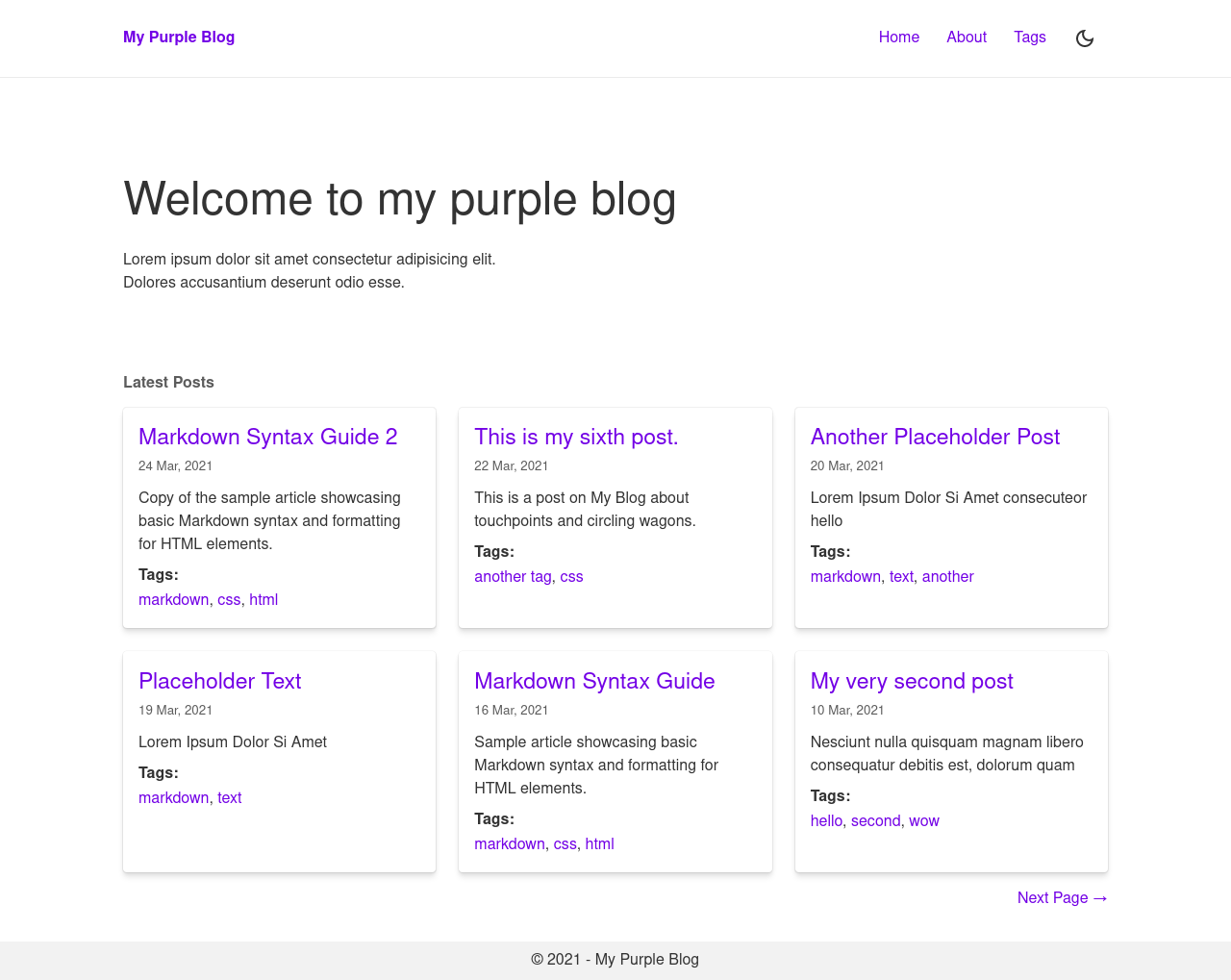which renders as the image below:

-
Optimizing images is up to you – you can preprocess them with an external tool before adding them to
static/img/. -
(Optional) Use
helpers.url()if you need to generate a full absolute URL based onsite.meta.siteUrl:<img src="{{ helpers.url('/static/img/photo.jpg') }}" alt="Alt text">
That’s it! After creating or updating a page, rerun Eleventy (npm run dev or npm run build) to see your changes locally.
Feel free to adapt layouts, styling, or frontmatter defaults; the above is the simplest way to get a new page up and running.
Tags: guide, doc
← Back home